

EMPOWER THE VISUALLY CHALLENGED BY
Converting text to audio
Converting text to audio

Features
Specifications
FAQs
How it Works
Download Leaflet
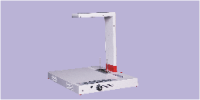
URead is an innovative, simple to use book reader for the visually impaired. It provides the visually impaired user with a listening experience, of printed matter, using naturally sounding voices.
• The Reader has a built-in keypad with tactile keys that provides access to a wealth of features.
• URead supports Hindi, English and multiple Indian Languages.
• It can be used to read full A4 size document or a bound book, in multiple languages.
• It has built in capability to read warped pages of a book and output Speech with high level of
accuracy.
• URead guides the visually impaired user through each step, with audible prompts.
• It supports multiple users to share the device with their own user areas.
• URead is capable of operating as a standalone device as it does not require Internet Connection
for its operation.
• Designed for long life of trouble-free use.
• Compact and Standalone Desktop model
• Scan and read with the touch of a button
• Supports A4 size Page / Bound Book / Multi column page
• Easy to use controls
• Reads current page while processing next page
• Supports Multiple Indian languages
• Internal speaker with excellent sound quality
• Head set jack for personal listening
• Guides the user through each step with audible talking menus.
• Internet connection not required
• Supports sharing up to 3 users
• Supports saving work sessions on USB Pen Drive
• Size (mm) : L x W x T x H 430 x 335 x 45 x 375
• AC Voltage : 100V – 240 V
• Weight : 4900 gms
• English
• Hindi
• Marathi
• Kannada
• Gujarati
• Tamil
• Telugu
• Bengali
More languages will be added in the future as and when necessary
• Play / Pause
• Volume : Up/Down
• Speed : Faster / Slower / Normal
• Seek : Forward /Backward
• Quit
Note: All specifications are subject to change. Kindly check with InnoHub for the latest
specifications.
You need to connect the unit to any standard 230V AC outlet and put the switch on the left-hand side of URead to ON. You then need to press the ON button on the keyboard for about 1 second to start the reader. Refer to User Manual.
URead needs to be shutdown first properly and then switched OFF. Shutdown of URead can be initiated (when it is ON) by pressing the ON button on the keypad for approximately 1 second or until the power OFF tune is heard. After approximately 30 seconds, URead shuts down and the LED goes OFF. The AC Mains power can be safely switched OFF after this.
Yes, after the power ON and after URead starts, it gives an audible musical tune followed by an audible message, approximately after 30 seconds, that it is ready. It also has an LED to indicate that it is ready.
Yes, you can read any printed document with URead.
URead can handle any document up to A4 or Letter size.
Yes, you can read any bound book up to A4/Letter size, with URead. It automatically corrects the warp that is inherent in the center fold and renders an accurate conversion.
No, at this moment, URead does not support hand written documents.
URead supports multiple languages, including printed documents in Indian languages. Currently, URead can support documents in English, Hindi, Kannada, Marathi, Tamil and Telugu. For other Indian Language support please contact InnovationHub.
Yes, URead can handle magazines in all the supported languages with reasonable accuracy. It can read multi-column printed pages under most circumstances.
URead ignores any pictures or photos in the document. However it reads all the text portions of the document accurately. In addition, if there are any descriptions of the picture or photo, URead reads them too.
URead supports natural sounding voices. They are closer to human voices and do not sound robotic.
No. The voices used by URead are currently fixed for each supported language and an option to change them by the user is currently not available.
No. URead has a built-in high-quality amplifier and speakers for a good listening experience and clarity.
Yes. URead has a standard 3.5 mm headphone jack to enable private listening, without causing any disturbance to others around.
Yes. You can change the speed or pace of reading that is comfortable for you. Refer to User Manual for further details.
Yes. URead has a Play/Pause/Resume option. You can pause the read operation anytime and resume it anytime. If you wish, you can also stop the read operation any time.
URead supports multiple controls like pause, volume, speed, seek etc. Refer to the User Manual for details.
Yes, URead supports the option of saving your current session on to an external USB Pen Drive. The saved files can be read by any other device that supports a USB interface, like a PC.
No, URead is a standalone device and does not need any Internet connection for its operation.
No. URead does not require any special lighting for its operation. It operates well under any ambient light. However, it will not function under very low light condition.
No. URead is a standalone device and does not need any external computing support like PC for its functions. It has necessary built-in capability of its own.
No. You cannot read the files from an external source with URead. This option is currently not supported.
No. URead neither comes with a battery backup nor accompanied by a UPS. The UPS has to be purchased separately.
No. URead does not require an UPS for its regular operation. It just needs to be plugged into a Mains AC source. However the use of UPS is recommended if the AC voltage fluctuates vastly or if power outages are very frequent. Such conditions might make URead non-functional.
As a first step, try switching OFF and then switching ON URead. If URead is still unresponsive, contact InnovationHub.
First contact InnovationHub to assess the exact problem. If instructed, send the URead system to InnovationHub by courier (at your expenses). InnovationHub will assess the system at their facilities, rectify if there are any problems and ship the URead back to you by courier (at their expense).
No, there is no need for any usage or subscription fee for using URead. There are no hidden costs.
Yes. URead comes with a one (1) year warranty upon purchase. The warranty could be extended with an Annual Maintenance Contract (AMC). To know more about AMC, contact InnoHub.
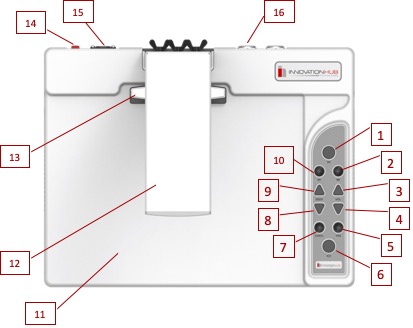
| 1. O – Power ON/OFF | 2. Y – Save Work |
| 3. + (Plus) | 4. – (Minus) |
| 5. C | 6. A |
| 7. B | 8. DN (Down) |
| 9. UP | 10. X |
| 11. Scan Area | 12. Sensor Arm |
| 13. Book Holder | 14. AC Mains ON/OFF Switch |
| 15. AC Inlet | 16. USB Socket |
• Connect Power cord to AC Supply
• Toggle Mains Power switch to ON position. RED LED COMES ON
• Press O Button for approximately 1 to 2 secs, until the GREEN LED comes ON
• Wait approximately 30 seconds for ON tune and announcement
• URead is ready for use
• Press O Button for approximately 1 to 2 sec till you hear Power Down tune
• Power Down process begins. Do not switch OFF AC Power now. Takes about 30 secs to power
down
• GREEN LED switches OFF when shutdown is complete
• You can switch OFF AC Power
• Listen to Voice Prompt for User Selection after URead is Ready
• Select User A or B or C by pressing A, B or C Button respectively
• Wait for confirmation
• Press X Button to enter setup Mode
• Select Instruction Language
• Press A for English
• Press B for Hindi
• Select Instruction Volume
• Press + Button for Hi Volume
• Press A for Mid Volume
• Press – Button for Lo Volume
• Select Voice for English
• Press + Button for American Male Voice
• Press – Button for American Female Voice
• Press UP Button for Indian Male Voice
• Press DN Button for Indian Female Voice
• Select Voice for Hindi
• Press + Button for Male Voice
• Press – Button for Female Voice
• Select Regional Language
• Press A Button for Regional Language
• Use UP Button (NEXT) to cycle through the supported languages
• Select Voice for Regional Language, if available. This option is not available for all the
supported languages
• Use + or – Button to select a voice, if available
• Press C to exit anytime
• After Ready prompt, select document language
• Press A for English
• Press B for Hindi
• Press C for Regional Language
• Place document on the reading area
• Press A Button to start scanning
• Additional document pages
• Wait for completion of 1st Page
• Listen to prompt
• Place next page
• Press A Button
• Press C Button to go back to the Ready state
• After Ready prompt, select document language
• Press A for English
• Press B for Hindi
• Press C for Regional Language
• After Prompt, press B Button to select Book option
• Place book on the reading area
• Use Book Holder mechanism to hold the book in place
• Press A Button to start scanning
• Additional book pages
• Wait for completion of 1st Page
• Listen to prompt
• Flip to the next page
• Press A Button
• Press C Button to go back to the Ready state
• During Speech output, to
• Increase Volume, press + Button, the desired number of times
• Decrease Volume, press – Button, the desired number of times
• During Speech output, the speed or pace of reading can be changes as follows:
• To read faster, press UP Button, the desired number of times
• To read slower, press DN Button, the desired number of times
• After the User Selection and during the Language selection menu, press UP Button
• URead starts reading the first page of the scanned book
• Use Y Button to go to the next page and X Button to go to the previous page
• Press C Button to exit this mode
• After the User Selection and during the Language selection menu, press DN Button
• URead starts reading the first page of the scanned documents
• Use Y Button to go to the next page and X Button to go to the previous page
• Press C Button to exit this mode
• After the completing the scan of the Book/Document wait for the Completion Tune
• Press B Button within 5 seconds of the Completion Tune
• URead starts reading the just scanned Book/Document, starting with the first page
• Use Y Button to go to the next page and X Button to go to the previous page
• Press C Button to exit this mode
• At Ready state, press Y Button to enter Save mode
• Listen to audible prompt
• Insert USB Flash Drive into the USB socket of URead
• Press A Button
• Wait for completion audible prompt
• Remove USB Flash Drive
• During Read, press A Button to Pause reading or Resume
Cancel an operation
• Press C Button to cancel any operation that is allowed
Note: Specifications, features, colour, form and shape of URead are subject to change.
Always check with InnoHub for the latest details.